Query overview
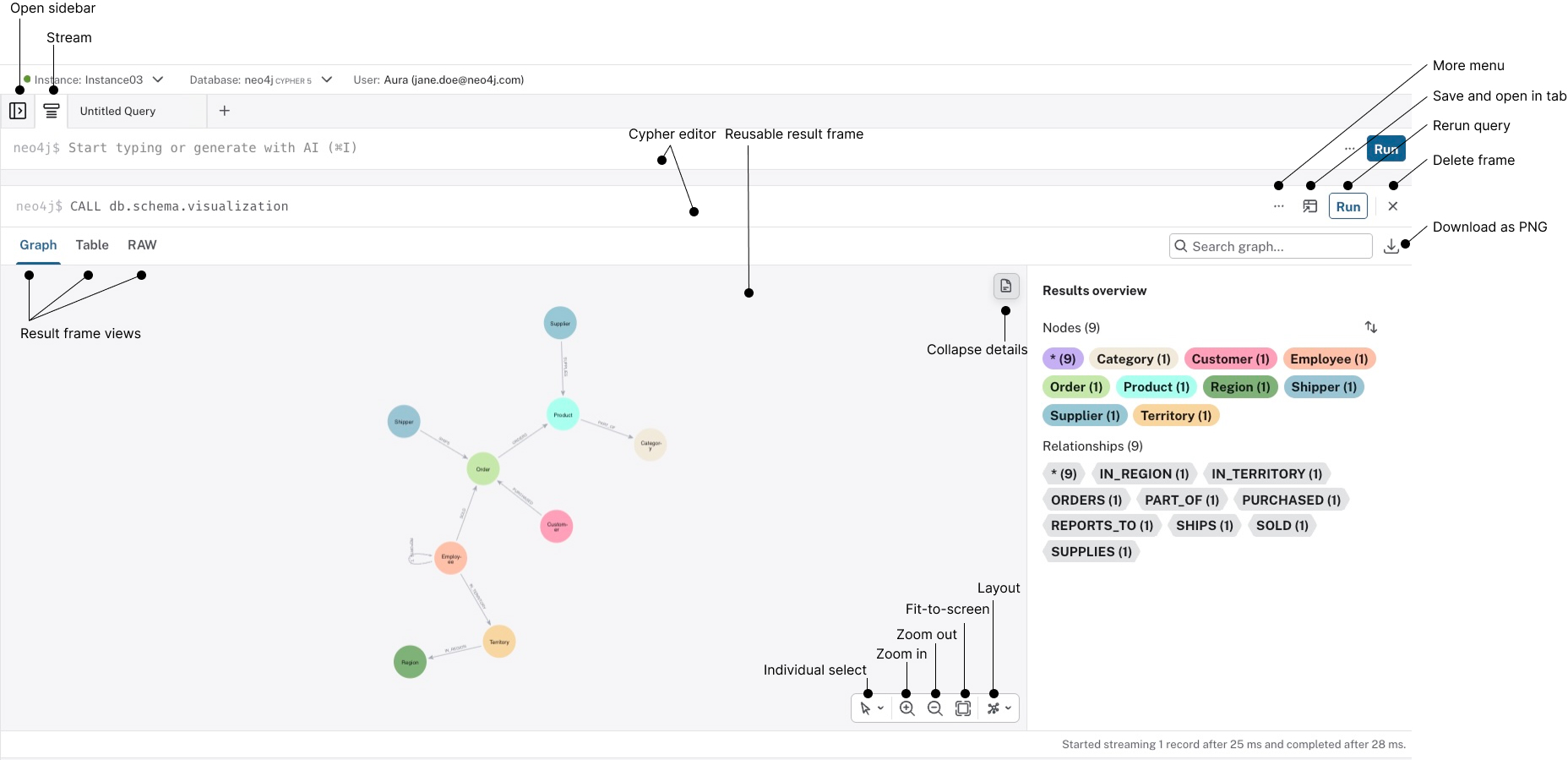
Connection bar
If you are not connected to an instance, the Connection dropdown shows grey for No instance connected but lets you select an instance to connect to. Once you have selected and entered your credentials, if needed, the status shows green for Connected and you are ready to start querying. This dropdown is also where you can switch instance, or disconnect.
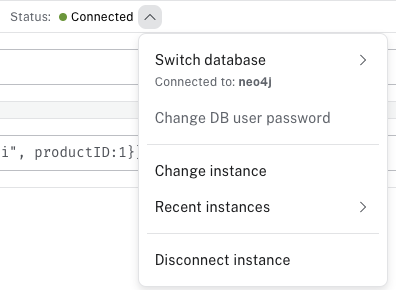
The database selector shows which database (and the Cypher version for that database) you are connected to. Additionally, the connection bar also contains information about the user.
Sidebar
The sidebar contains a set of drawers to set up the environment for graph management and explore your data.
Database information
This drawer contains information about the database you are connected to. It gives you an overview of the node labels and relationship types, as well as which property keys exist in the database. If you select one, you see a sample of the selected element as a graph or table.
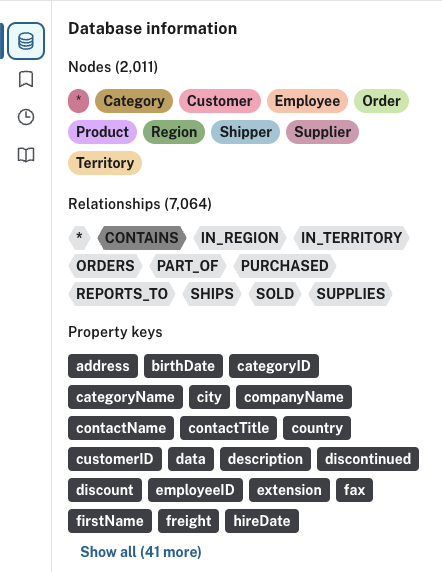
Additionally, the drawer contains node and relationship counts, displayed in parentheses.
Query
When you use the Save and open in tab button (available in the result frame), the query in the editor is saved to this drawer, even after the tab is closed.
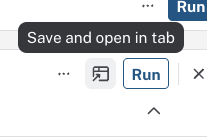
When you open a query from this drawer, it opens in a new tab.
If you open a new tab to write a new query, it is saved as a draft in this drawer as soon as you start writing the query or if you rename the tab. The query remains a draft until you move it by dragging it to the location you prefer.
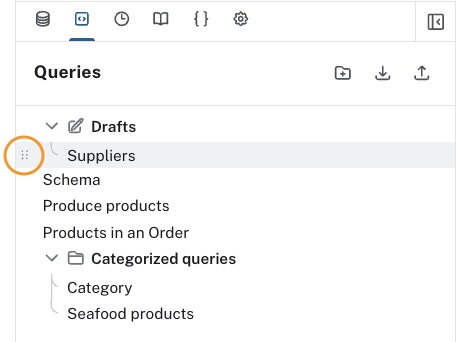
From here, you can organize your saved queries, download or upload these, or delete them if needed.
Right-click a query to access the possible actions. You can:
-
rename
-
open in a new tab
-
open in the stream
-
download
-
delete
Query history
This drawer contains a list of your previously run queries, for your reference. Queries are kept here until you delete them and are not limited to the current instance.
Cypher Reference
The Cypher reference is an embedded version of the Cypher Cheat Sheet. It allows you to search for Cypher-related terms such as queries, patterns, and clauses, directly in Query. It is divided into sections and subsections for easy navigation and each subsection can be expanded and collapsed.
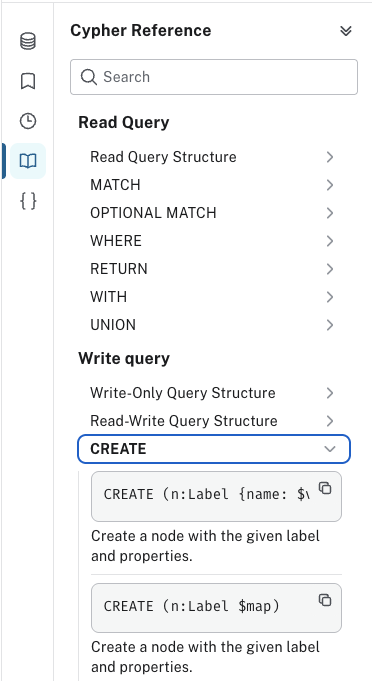
You can select an example to run it in the editor or copy it to the clipboard. Note that some examples require data you may not have in your database and may not be runnable nor yield desired results, but are used to illustrate syntax and functionality of Cypher.
Every subsection is also a link to the Cypher Manual for more details.
Parameters
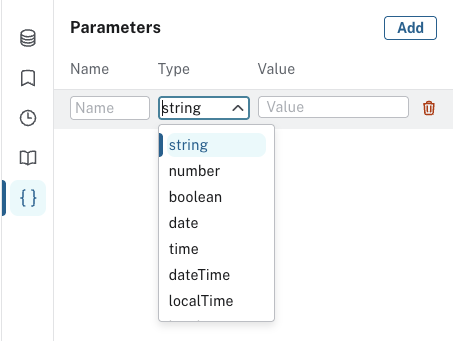
The parameter drawer allows you to set parameters to use in your queries. This can also be accomplished by using the :param command. For more information about using parameters see Query parameters.
Cypher editor
The Cypher editor is the primary interface for entering and running Cypher queries and commands. The editor can be instantiated several times, which allows you to edit the query inside the result frame and rerun it. It can hold multiple lines for long queries or commands.
Syntax highlighting
-
A smart highlight of matching pairs around the current position of the cursor, for example, matching brackets, braces, and parenthesis.
-
Matching pairs are auto-closed.
-
A smart highlight of identical words on a word click.
-
Words, such as attributes, anon name, and values, are highlighted in different colors.
-
Any punctuation, such as parenthesis and comma, has a slightly different color than text.
-
Warnings are displayed with a red squiggly line that displays the error if you hover.
| Description | Keyboard shortcut (Mac OS) | Keyboard shortcut (Windows and Linux) |
|---|---|---|
Select highlighted identical words one by one. |
command + D |
Ctrl + D |
Select all highlighted identical words. |
command + shift + L |
Ctrl + shift + L |
Move a query line up and down. |
ALT + arrow |
ALT + arrow |
Delete a query line. |
command + shift + K |
Ctrl + shift + K |
Add multiple cursors, if you want to add several lines at the same time. |
command + ALT + arrow |
Ctrl + ALT + arrow |
Search and replace. |
command + F |
Ctrl + F |
Run a query. |
command + enter |
Ctrl + Enter |
Query settings
The settings menu is located to the right of the Cypher editor and contains various adjustable settings for the tool.
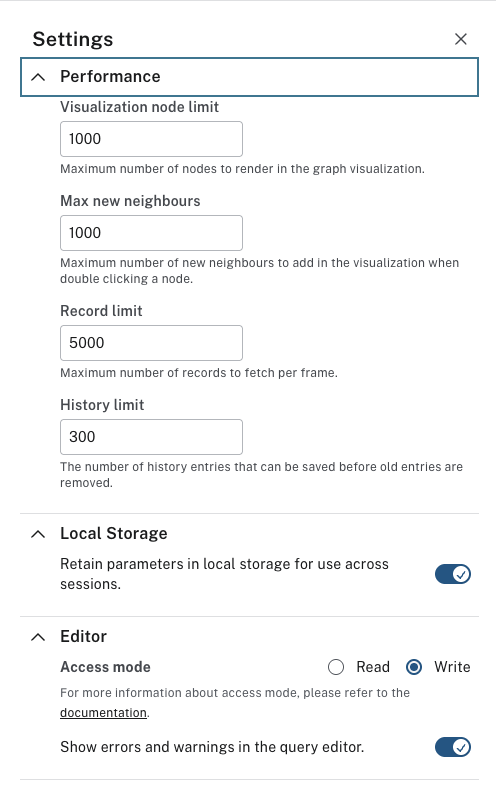
The first part contains settings that have to do with the performance of the tool. The Visualization node limit controls the number of nodes returned by an initial query. If your query’s results exceeds this limit, you can still add more elements to the graph visualization. Setting any of the limits too high may degrade performance.
The local storage section allows you to save your parameters to use across sessions.
The next part relates to the Cypher editor. You can control whether your queries can write to the database or not with the Access mode setting.
The toggle for errors and warnings is used to enable hints to help you find errors in your Cypher queries.
Reusable result frames
When you run a query in the Cypher editor, the query and the results are displayed in a reusable result frame. You can edit the query of an existing result directly in the result frame and rerun it to update the result in situ. You can also use Cmd/Ctrl + click to send it back to the main editor and re-run it from there. This results in a new reusable result frame in your Stream.
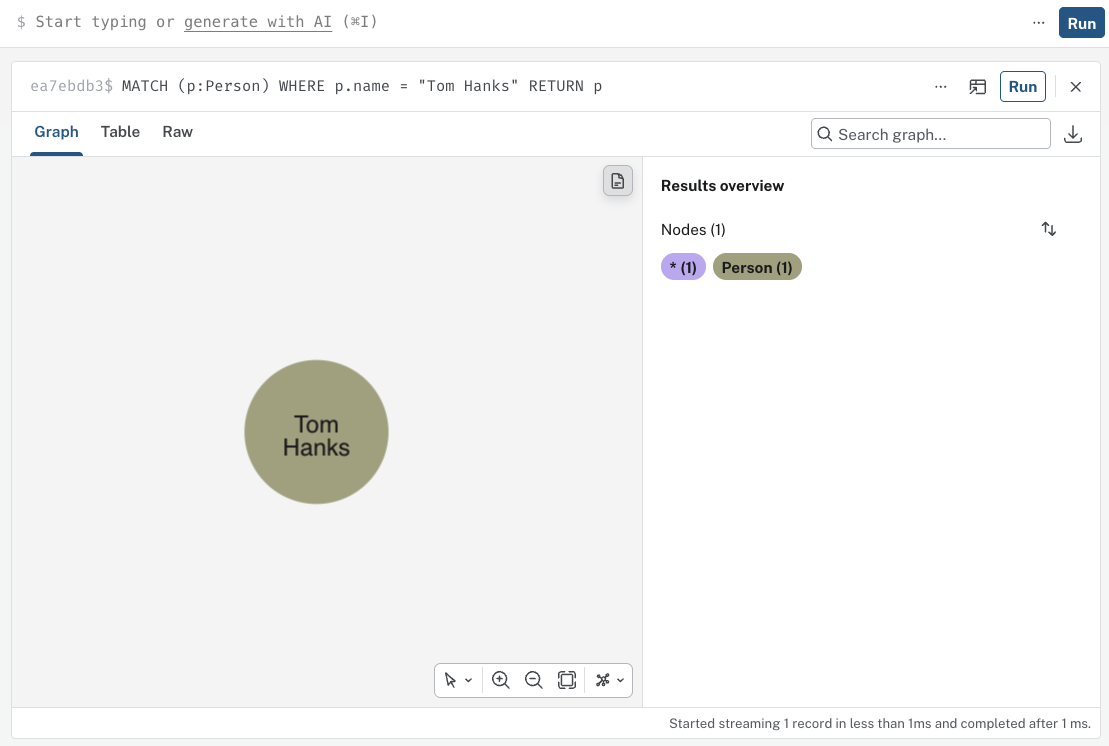
Query supports different result frame views:
-
Graph — Display the result as nodes and relationships and allow styling to be configured.
-
Table — Display the result as JSON formatted rows.
-
RAW — Display the submitted request, the Neo4j Server version and address, and the response.
-
Plan — Display the execution plan for the query, with or without execution.
Stream
A stream is a scrolling series of result frames.
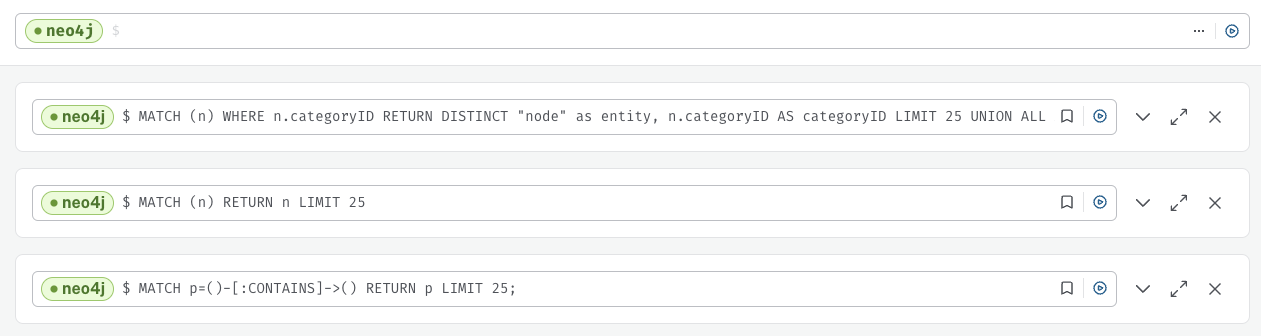
A reusable result frame is created for each command execution, added to the top of the stream to create a scrollable collection in reverse chronological order.
You can minimize and enlarge the result frames from the […] more menu.
To remove all the frames from the stream, use the :clear command.
Clearing the stream does not clear the history, that is done from the Query history drawer, as mentioned previously.
The frames in the stream retain the connection that was active when the frame was created and if the current connection is different, the query cannot be re-run. Tabs, however, always use the currently active connection, and if applicable, can thus always be run.
Tabs
If you open a query in a tab, either from the result frame or from the Query drawer, you have three options to view the query and results:
-
Results on bottom
-
Results on right
-
Interactive table view
All three options display the Cypher query and the results, either as a graph (if results can be visualized as a graph) or as a table. The first two options allow you to toggle between graph (if available), table, and RAW views.
Regardless of orientation of results, in the table view, you can search the table, download in different formats, and copy a table to the clipboard. In the graph view, you can search the graph and download as PNG.
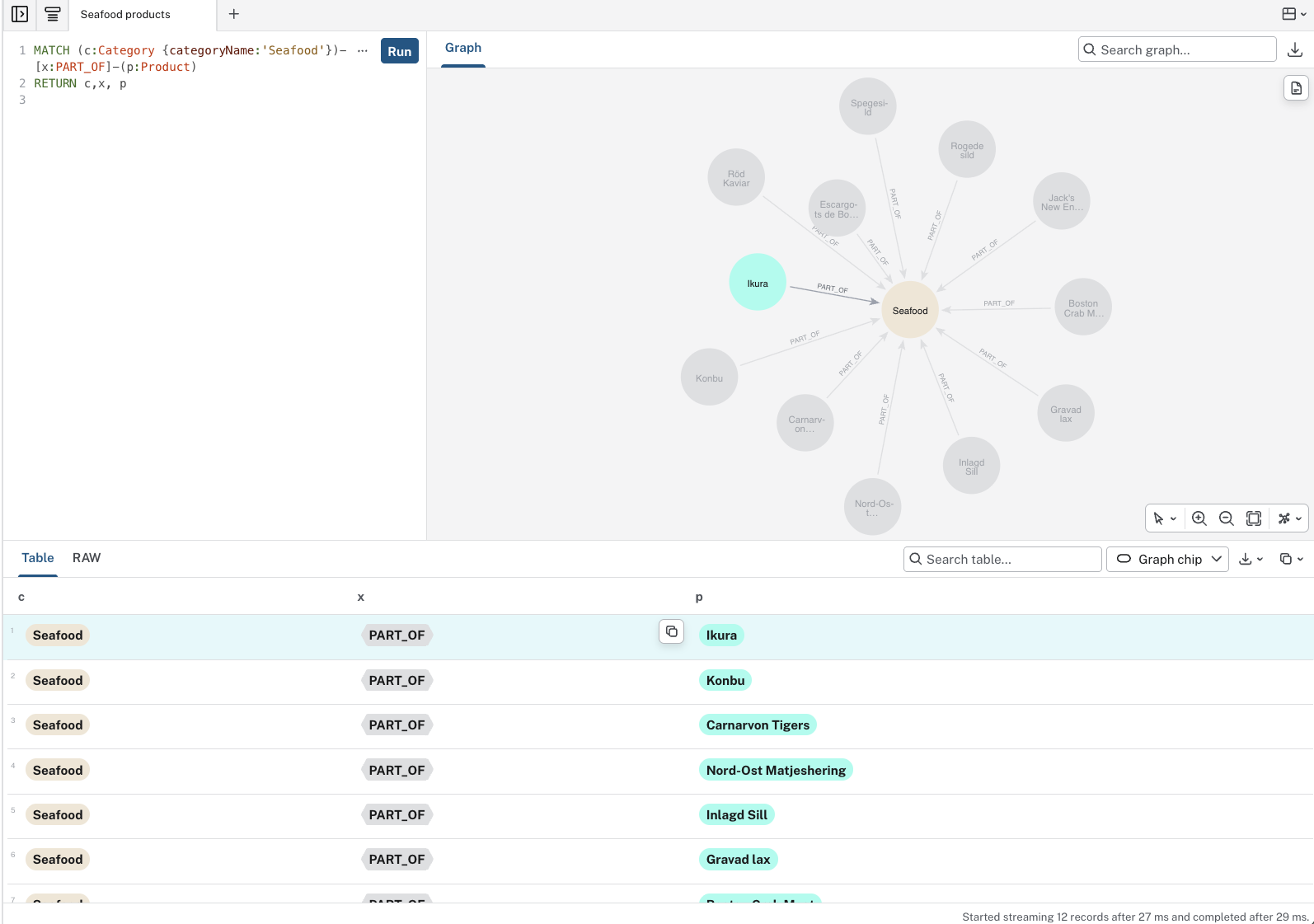
The interactive table view displays the result both as a graph and a table. It consists of three panels, the Cypher editor (populated with your Cypher query), the graph panel, and the table panel.
The query in the editor can be edited and re-run, and the results will be updated in both the graph and the table panels.
The graph panel offers the same functionality as the regular graph view, but it also allows you to select graph objects from the graph and see them highlighted in the table.
Likewise, the table panel allows you to select graph objects from the tabular results and see them highlighted in the graph.
Query co-pilot
The co-pilot is a feature that helps you write Cypher queries. It allows you to use natural language to ask the database a question, to query the database in other words. You enter your question and the co-pilot suggests a Cypher query based on your input. You can edit the query and run it or rephrase your question to generate a new query.
When you write a question, it is automatically augmented with the current database schema, which provides the LLM with the right context. Being familiar with the database schema helps you write questions that are more likely to generate accurate Cypher queries.
|
If you need a reminder what your datamodel looks like, you can use the procedure |
The co-pilot is available from the Cypher editor once you have enabled it in the Org settings. See Organization settings for more information.
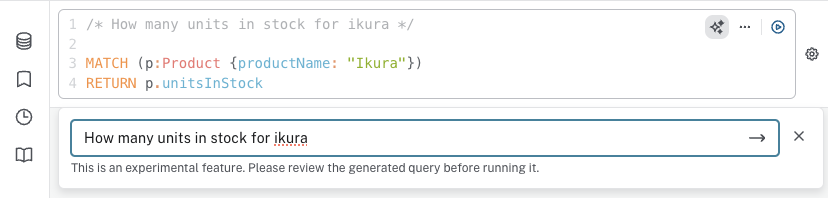
The co-pilot is not guaranteed to always generate accurate Cypher queries. It is recommended to review the generated query before running it, especially if the query is meant to write to the database.
Some known limitations include:
-
Incorrect relationship direction.
-
Using deprecated Cypher syntax.
-
Tendency to not return relationships.