Connections
In Desktop, you can connect to both local and remote instances. For local instances, the connection is established when you start the instance, but for remote instances, you need to specify connection details.
Remote connections
You can connect to Neo4j instances/DBMSs that are running remotely, including Neo4j Aura instances. From the sidebar, under Data services, you find Remote connections. To add a remote connection, use the button and provide the following:
-
Protocol - select the one suitable for your environment.
-
Connection URL - where your remote instance is located.
-
Database user - for the remote instance.
-
Password - for the remote instance. If you have saved your Aura-instance credentials as a .txt file, you can drag and drop or browse for them.
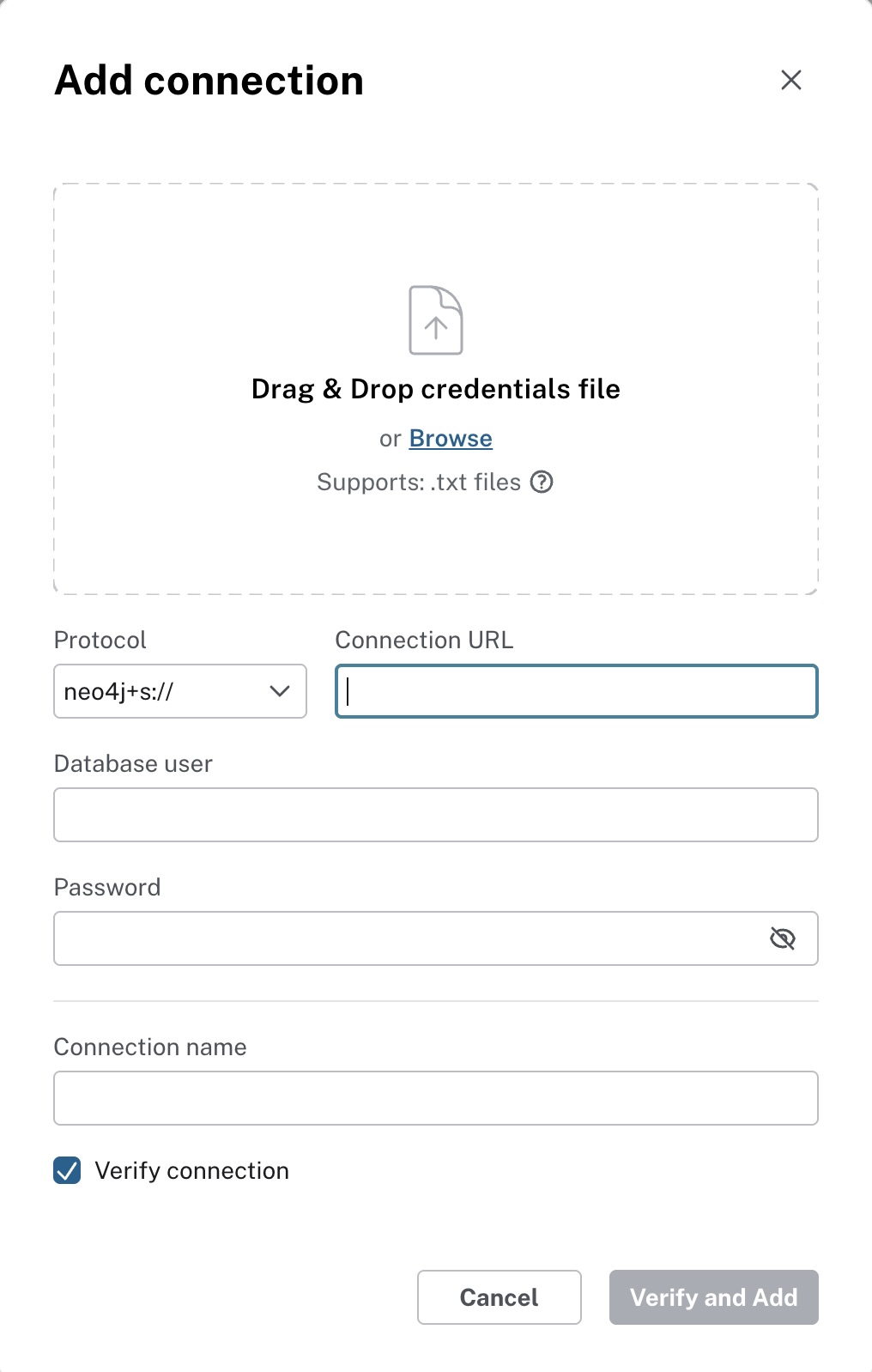
Once you have added a remote connection, it is listed as an instance card, just like your local instances.

Connect Aura account
If you have a Neo4j Aura account and instances running, you can connect to them from Desktop, either via a remote connection as described above, or you can connect your Aura account for access to all your Aura instances.
Use the Connect Aura account button in the top right corner to start the process.
You need to provide an Aura API key to establish the connection. If you don’t have one, use the link provided which takes you to your account settings in the Aura console. From there, navigate to Client credentials and Create client credential which generates a key for you. A file containing an Aura API client ID and secret is generated and downloaded.

Once you have the key, continue with Add Aura API key and provide the credentials to save the Aura API key. You can drag and drop the file that was generated for you, or enter the ID and secret.
Provided that the connection is successful, you can see the status as Connected.
Once Desktop is connected to your Aura account, you can see this indicated in the top right.
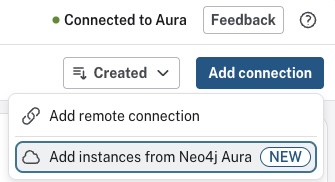
To add your Aura instances, from Remote connections, use Add connection to select Add instances from Neo4j Aura. All organizations, projects, and instances your Aura account has access to are listed. The dialog allows you to select multiple instances and add them as remote connections to Desktop.
Connecting tools
As mentioned in Connect tools, you can connect directly to either of the tools using the Connect dropdown on a running instance.
This action connects the selected tool to the default database (neo4j, unless otherwise specified).
Once in Query, Bloom, or Dashboards (or Import), you see the connection bar towards the top of your screen. This allows you to switch not only which database to connect to, but also which instance and user.
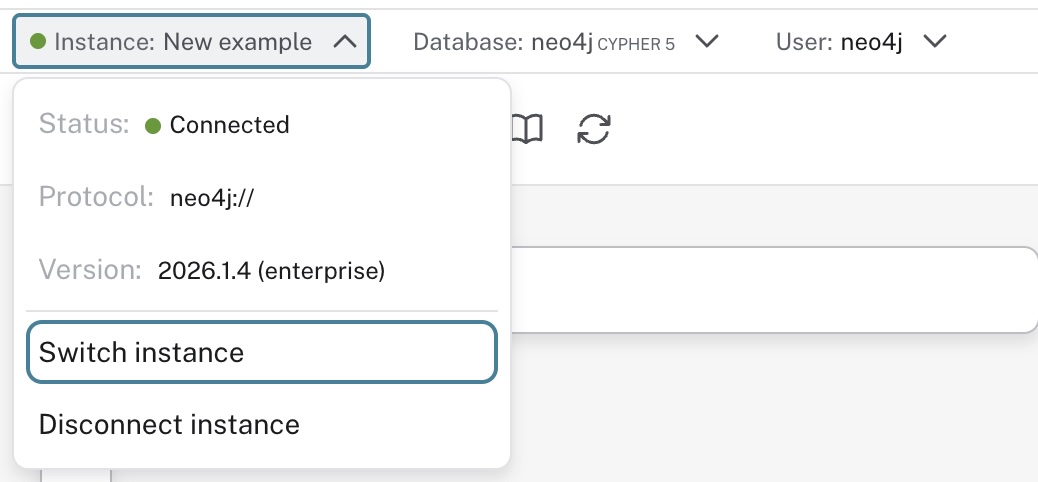
As mentioned, you can only have one instance running and therefore, if you opt to switch instance from the connection bar, you need to stop the currently connected instance and start the one you want to connect to. Options for this are presented as the next step after selecting Switch instance. You can choose to connect to a different local instance or a remote instance (see Remote connections above for more information). For local instances, use the play button to start the instance you want to switch to, this automatically stops the currently connected one.
For remote instances, enter the credentials and then Connect.