Role-based access control for Perspectives and Scenes
Enterprise Edition
As mentioned in Storage and sharing, when the Bloom server plugin is used, Perspectives are stored in a persistent Neo4j database. This means that not only can Perspectives and Scenes be shared between users, but also that administrators can control user-access to them by configuring RBAC on the database where the Perspective is stored.
To learn about access control, including role management, see Operations Manual → RBAC and fine-grained privileges.
For a user to be able to create and/or edit a Perspective, they need to have write privileges to the _Bloom_Perspective_ label.
To be able to create and/or edit Scenes, they need write privileges to the _Bloom_Scene_ label.
Note that since the privilege is only needed to these two labels specifically, not the entire database, the write privilege can be specified accordingly.
See the example below for more information on which write privileges are needed.
Remember that all roles with Bloom access need to be authorized in the neo4j.conf file, using the neo4j.bloom.authorization.role(with Neo4j 4.x) or dbms.bloom.authorization_role (with Neo4j 5).
See step 5 in Installing server plugin for more information.
You can grant WRITE access on the entire graph to a role, or you can create a custom role with more limited access.
If you want to limit a role’s access to only Perspectives and /or Scenes, you need to use a combination of the CREATE and the SET PROPERTY privileges to the _Bloom_Perspective_ and the _Bloom_Scene_ labels.
By explicitly granting these, instead of the universal WRITE, administrators can limit access to just creating new nodes and/or update properties in a Perspective or a Scene.
See the example further on for an example on how to create a custom role with limited access.
If a user lacks appropriate access, applicable functionality is hidden in Bloom. For example, if a user has not been granted write privileges to a Perspective, they are not able to see the Create option in the Perspective gallery, they are not able to edit saved Cypher, and they are excluded from any modifications of the Perspective. Accordingly, if a user has not been granted write privileges to a Scene, they are not able to see the Add new Scene option in the Scene drawer.
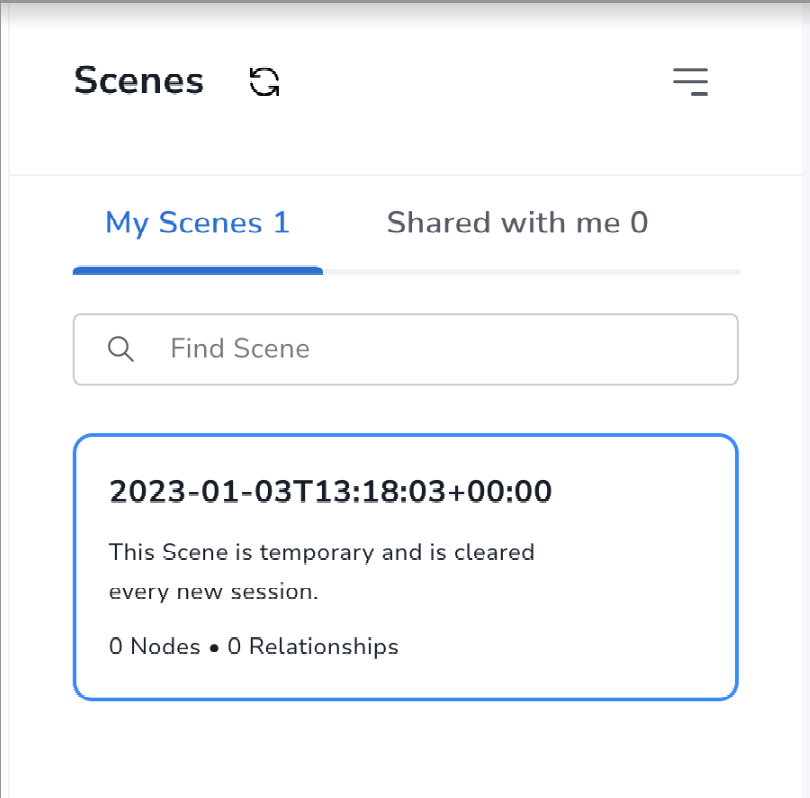
If a user lacks write privileges to Scenes, their access is restricted to a Temporary Scene. This allows for styling and editing of the Scene, but the changes can’t be saved and the Scene is lost at the end of the session.
Example roles
You can create custom roles as a copy of built-in roles, and then enhance them with additional privileges, or you can build them from scratch. The following examples achieve the same goal of restricting users to read access to the database, while allowing them to edit Perspectives and Scenes in Bloom.
The first example describes how to create a role, custom, with write access to a Scene.
The custom role is created as a copy of the built-in reader role, and enhanced with additional priviliges.
For more information about built-in roles, see Operations Manual → Built-in roles.
Users with this role can use a Scene fully, without having WRITE access to the database.
However, they need to have a Perspective shared with them since they can’t create their own.
CREATE ROLE custom AS COPY OF reader;
GRANT CREATE ON GRAPH `neo4j` NODE _Bloom_Scene_ TO `custom`;
GRANT CREATE ON GRAPH `neo4j` RELATIONSHIP _Bloom_HAS_SCENE_ TO `custom`;
GRANT SET PROPERTY {*} ON GRAPH `neo4j` NODE _Bloom_Scene_ TO `custom`;
GRANT DELETE ON GRAPH `neo4j` NODE _Bloom_Scene_ TO `custom`;
GRANT DELETE ON GRAPH `neo4j` RELATIONSHIP _Bloom_HAS_SCENE_ TO `custom`;|
You have to grant |
To allow users with the custom role to create Perspectives, they need the same permissions to the _Bloom_Perspective_ label:
GRANT CREATE ON GRAPH `neo4j` NODE _Bloom_Perspective_ TO `custom`;
GRANT SET PROPERTY {*} ON GRAPH `neo4j` NODE _Bloom_Perspective_ TO `custom`;
GRANT DELETE ON GRAPH `neo4j` NODE _Bloom_Perspective_ TO `custom`;
If you want to restrict access to read-only without the possibility of making any changes, you can grant the reader role without any additional privileges.
Note that this also prevents the user from performing any updates to the database through Bloom, such as adding nodes and relationships, or editing properties.
The other option is to create a custom role from scratch.
The role needs to have similar access rights as the built-in reader role on the graph:
CREATE ROLE custom
GRANT ACCESS ON DATABASE `neo4j` TO `custom`;
GRANT SHOW CONSTRAINT ON DATABASE `neo4j` TO `custom`;
GRANT SHOW INDEX ON DATABASE `neo4j` TO `custom`;
/*
 The statement below can be limited to what the role is allowed to see.
 If access needs to be more granular,
 MATCH access to _Bloom_Perspective_, _Bloom_Scene_ and _Bloom_HAS_SCENE_
 has to be explicitly given here as well.
*/
GRANT MATCH {*} ON GRAPH `neo4j` TO `custom`;
Both examples above create a custom role with read-only access to the database and write access to Perspectives and Scenes in Bloom.
However, if a user with this role is the first user to access the database from Bloom, they also need the following privilege to be able to create the first Perspective and Scene:
GRANT CREATE NEW PROPERTY NAME ON DATABASE `neo4j` TO `custom`;Perspective actions by database privileges
The following table maps various Perspective actions available to a user according to the database privileges granted to them. Note that this table is applicable for the Bloom plugin setup only, when storage is provided by the plugin and Perspectives may be shared across users. For setups without the plugin, Perspectives are stored locally on the user’s machine and thus the user can perform all relevant actions.
| Actions | Read only | Write | Write + list roles | Write + list and create roles |
|---|---|---|---|---|
Open Gallery |
Yes |
Yes |
Yes |
Yes |
Select Perspective from Gallery |
Yes |
Yes |
Yes |
Yes |
Allow local Perspective edits |
No |
Yes |
Yes |
Yes |
Save edits to store |
No |
Yes |
Yes |
Yes |
Delete Perspective |
No |
Yes |
Yes |
Yes |
Create new/Generate Perspective |
No |
Yes |
Yes |
Yes |
Sharing tab |
Yes |
Yes |
Yes |
Yes |
See already mapped roles |
Yes, can view own role(s) but not change |
Yes |
Yes |
Yes |
See list of roles |
No |
No access |
Yes |
Yes |
Map to a role |
No |
Yes (only default db roles) |
Yes |
Yes |
Delete role mapping |
No |
Yes |
Yes |
Yes |
Create new role |
No access |
No access |
No |
Yes |
Export |
Yes |
Yes |
Yes |
Yes |
Import |
No |
Yes |
Yes |
Yes |
Users that have write access to the database, i.e. users that can create Perspectives, also have the ability to export and import Perspectives.